1:1
1:1 product grid
Use square images for product grids, profile images and social posts.
Describe the image, add references if needed, and create results you can keep editing.
Model
View generated results in Assets.
Generated results
Download results, save them to assets, or continue with them as references.
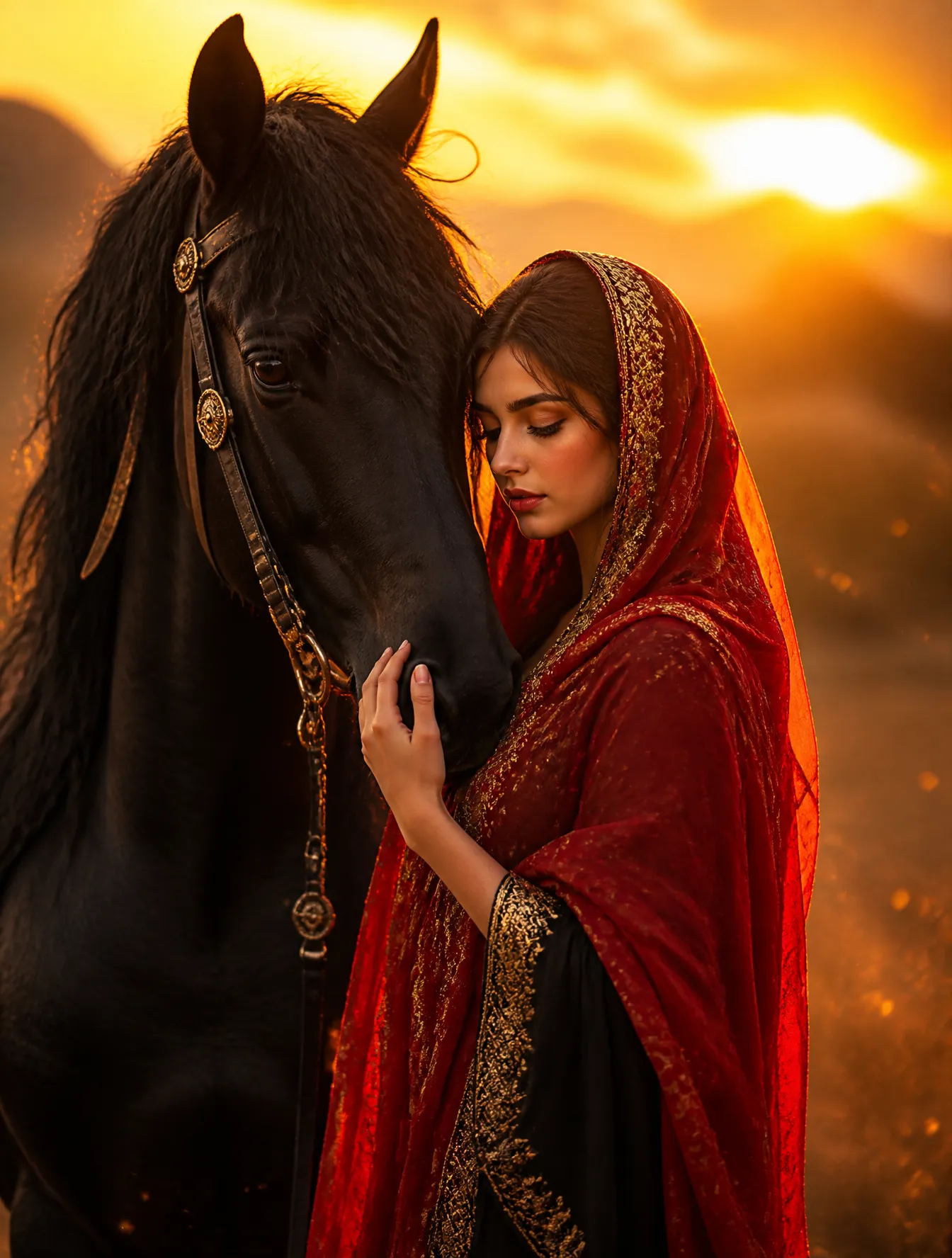
Text-to-image workspace
Describe an image, add references, and generate editable results in one workspace
A useful AI image generator should do more than create one pretty picture. It should help you move from prompt to image, compare directions, keep the best result and continue editing without leaving the browser.
A simple three-step workflow keeps the page approachable while giving you control over style, quality, references and output format.
Describe the subject, setting, lighting, visual style, camera angle and final use. Concrete details help the model understand what matters.
Pick an image model, ratio, quality level and how many variations you want before generating.
Create the image, compare the results, download the strongest version, save it to assets, or use it as a reference image.
Use these examples as starting points, then swap the subject, colors, mood, format or style for your own image.
A prompt does not have to be long, but it should tell the model what to prioritize. Think of it as a short creative brief.
Name the person, product, object, scene or concept that should be most visible. The subject tells the AI image generator what must stay recognizable.
Add the environment, background, season, time of day or story moment. Context turns a generic text to image request into a specific visual brief.
Mention photography, illustration, 3D render, editorial, poster, watercolor, anime, cinematic, minimalist or another visual language.
Specify composition, lighting, color palette, camera angle, detail level, aspect ratio and what to avoid.
This workspace lets you choose practical settings before you spend credits, so each image fits the channel where it will be used.
Use square images for product grids, profile images and social posts.
Use portrait ratios for stories, posters, portraits and vertical campaign assets.
Use landscape formats for headers, blog covers, YouTube thumbnails and presentation slides.
Use AI image generation for first drafts, campaign concepts, social graphics, product scenes, AI art and new directions from your own reference photos.
Create graphics for Instagram, X, LinkedIn, launch posts, carousels, stories and daily updates.
Draft campaign art, ad concepts, thumbnails, banners, lead magnets and visual directions before committing production budget.
Turn reference photos into new styles, scenes, backgrounds and polished image concepts while keeping the original subject or composition in view.
Generate product scene ideas, clean hero images, seasonal product backgrounds and lifestyle compositions.
Make article covers, newsletter images, explainer graphics, concept visuals and supporting images that match a specific topic or editorial tone.
Explore posters, character ideas, moodboards, game concepts, album covers, wall art and wallpapers.
The best results often come from iteration. Create a first set of options, choose the most promising direction, then use that image as a reference for the next pass.
Start from a clear visual brief that explains the subject, environment, style and constraints.
Search intent around image generator AI tools is practical: users want to know whether the tool can create a new image, control the result and fit a real workflow.
A stock library helps you find an existing image. An AI image generator creates a new visual from your prompt, so you can control the subject, setting, style, ratio and mood.
Generative tools are fast, but every result still needs a human review. Look at the subject, edges, small details and intended placement.
Answers to common questions about creating images from text, choosing ratios, using reference photos and getting better results from an online AI image generator.
An AI image generator creates new images from a text prompt. You describe the subject, scene, style, lighting, color palette and purpose, then the model turns that description into visual options.
Start with a prompt, add a reference image if you have one, and generate polished image options with a free AI image generator in your browser.